Training Offering Catalog Dynamic Object
Use the Training Offerings Catalog Dynamic Object to make Training Offerings accessible to your Users. You can use a wizard to add it to any LearnCenter page.
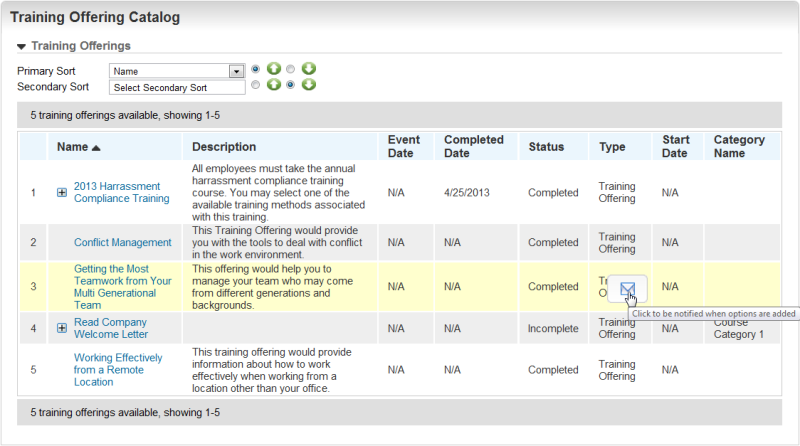
You can provide Users with the ability to view and access their Training Offerings, and express interest in future Training Offerings.
Setting Up the Training Offering Catalog Dynamic Object
Use the Training Offering Catalog dynamic object wizard to set up the Training Offering Catalog dynamic object. On any LearnCenter page:

- Click
 in the management control icons section. The page you are viewing opens in Edit Mode.
- Click
 to modify an existing area of the page.
or
Click Insert New Area Here, select Free-Form (Text and Graphics) from the Area Type drop-down list, and click Create.
- Place your cursor anywhere on the page, and click
 . The Dynamic Object window opens.
- Click
 next to Advanced Learning in the Object Types panel.
- Click Training Offering Catalog. The Training Offering Catalog Wizard opens.
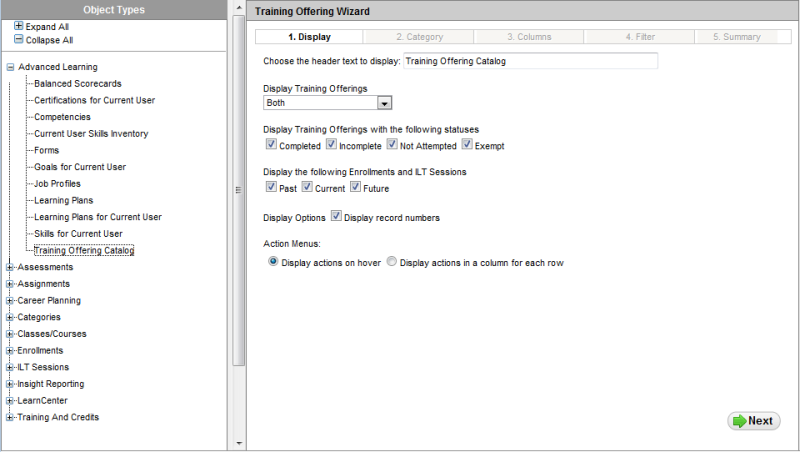
- Select one of the following for Display Training Offerings:
- Both - to display Training Offerings with and without mapped items.
- Only with Mapped Items - to display only Training Offerings that have mapped items like Assignments, Courses, Classes, etc.
- Only without Mapped Items - to display only empty Training Offerings. See Gauging User Interest in Training Offerings for information on why you would want to use this option.
- Select any of the following for Display Training Offerings with the Following Statuses:
- Completed
- Incomplete
- Not Attempted
- Exempt
- Select any of the following for Enrollments and ILT Sessions:
- For Display options, select the Display Record Numbers check box to display a row of numbers to the left of the results list.
or
Clear the check box to hide the row of numbers to the left of the results list.
- For Action Menus, click either of the following:
- Display actions on hover - to indicate you want action buttons to display when Users rest their pointers over a row in the results table.
- Display actions in a column for each row - to indicate you want an Actions column containing all possible action buttons to display in the results list.
- Click Next.
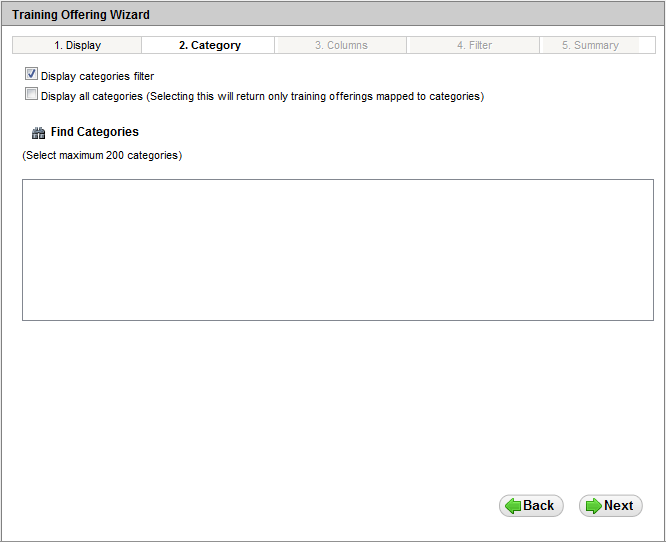
- Click the Display categories filter check box to indicate you want to display a field to enable Users to filter external training by category.
or
Clear the check box to indicate you do not want to display this filter.
- Click the Display all categories check box to display only Training Offerings that are mapped to Categories.
or
Clear this check box to display all Training Offerings, regardless of Category. (Default)
- If you only want to display Training Offerings mapped to specific categories, click Insert Categories and select the appropriate categories.
- Click Next.
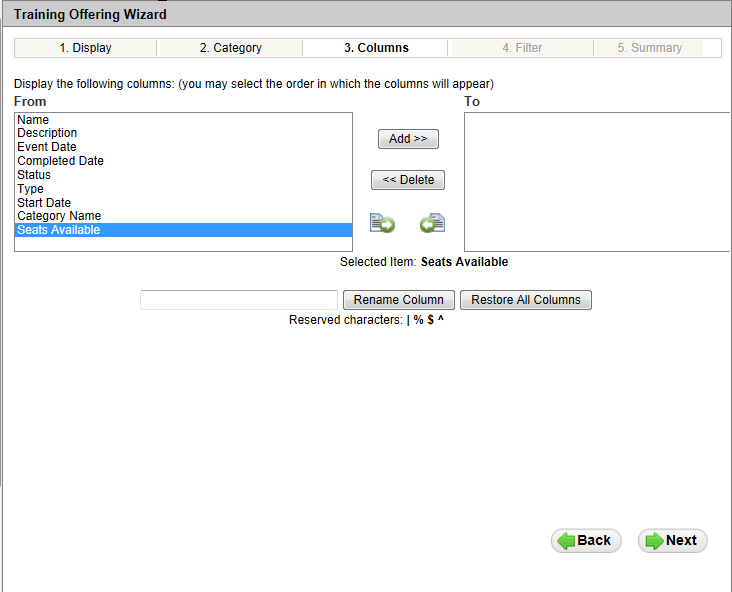
- Determine which columns you want to display on the page to Users and move those columns from the From box to the To box, or click Move List to move all columns to the To box. You can change the order of the columns by using the Order buttons to move column names up or down in the list.
- Click Next.
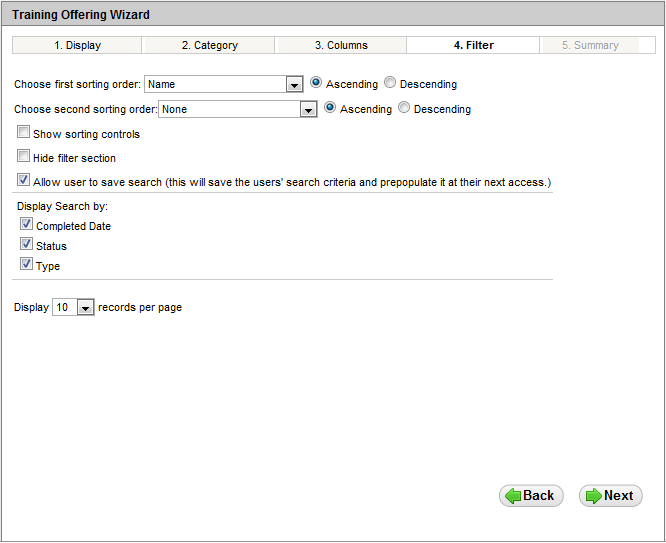
- Indicate how you would like the job profiles to sort on the page by selecting one item from the Choose first sorting order drop-down list. This list contains the column names you selected on the Columns tab. HTML formatted ILT Event, Track and Session descriptions, and HTML formatted Enrollment descriptions now display using HTML on the Training Offerings Catalog Dynamic Object.
- Click one of the following options:
- Ascending - to sort the list in an ascending manner.
- Descending - to sort the list in a descending manner.
- (Optional) Indicate a second level of sorting by selecting one item from the Choose second sorting order drop-down list.
- Click one of the following options:
- Ascending - to sort the list in an ascending manner.
- Descending - to sort the list in a descending manner.
- Click the Show sorting controls check box to indicate you want the sorting controls to be displayed for Users to sort items for themselves. (Default)
or
Clear the check box to hide the sorting controls from view.
- Click the Hide Filter Section check box to hide the filter selection tool from Users. If you click this check box, the Allow User to Save Search check box becomes unavailable.
- Click the Allow User to Save Search check box to enable Users to save the search criteria they use and pre-populate the fields the next time they access this dynamic object.
or
Clear the check box to prevent Users from having the ability to save their search criteria. (Default)
- Select any of the following for Display Search by:
- Completed Date
- Status
- Type
- Select the number of records you want to display from the Display [x] records per page drop-down list.
- Click Next. The summary page displays.
- Click Return Selected to submit your selections and add the dynamic object to the LearnCenter page.
- On the WYSIWYG tool bar, click
 .
.
- Click
 to review how your selections will appear to Users.
What Users See
Your end Users see the a dynamic object similar to the following, based on the selections you made in the wizard.
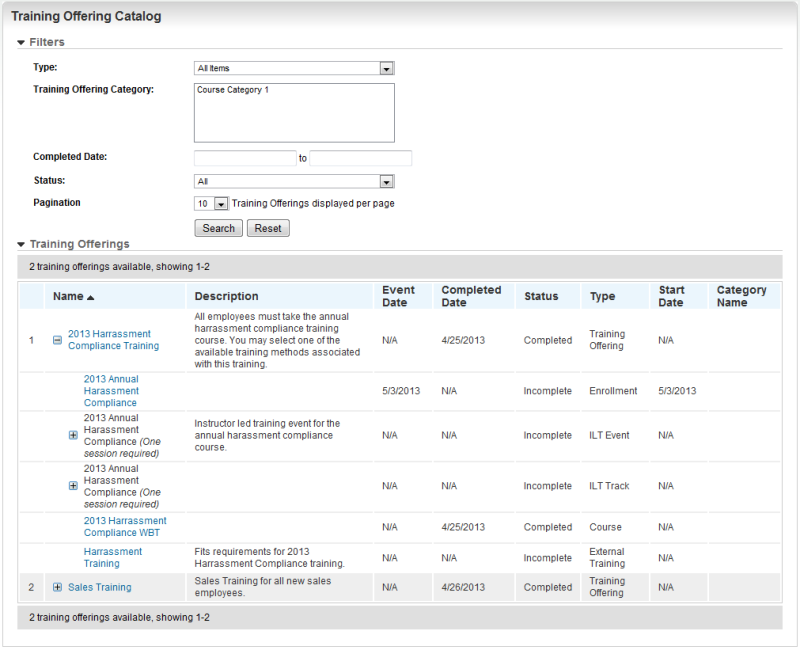
Users can see all available Training Offerings. They can click to expand Training Offerings to see the mapped item choices from which they can select. Items that are not part of Enrollments, such as Courses,can be accessed directly from the dynamic object by clicking the hyperlink.
If you selected the Seats Available column in the dynamic object wizard, data only appears in the column for the learning items for which Seats Available information is appropriate (Enrollments and ILT Sessions mapped to the Training Offering).
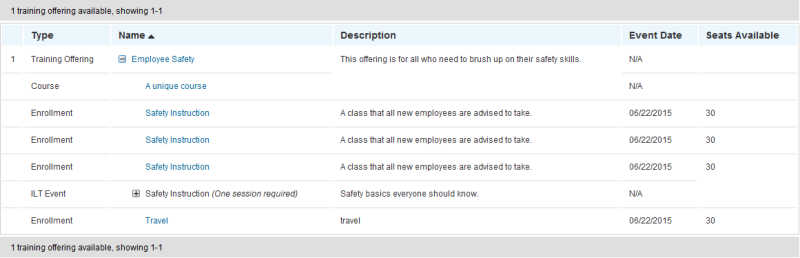
For Enrollments mapped to a Training Offering, the Seats Available column displays the current number of seats available. For ILT Sessions mapped to a Training Offering, the Seats Available column displays the combined total of all available seats for the Enrollments the Session is mapped to.
 Related Topics

Copyright © 2010-2015, Oracle and/or its affiliates. All rights reserved.